Before Apple added Smart Lists, and many other features, to Reminders there was GoodTask. GoodTask has used Reminders as it's sync system for a number of years, and then layered a bunch of excellent features on top of Reminders to make it a very powerful task management system.
If you use SetApp then GoodTasks is available there with your subscription.
Global Keybord Shortcut
One of the big benefits of GoodTasks is that it can provide you with a global keyboard shortcut to add tasks to Reminders. To set this command press ⌘ , to open settings. Then under General click the button labelled Global Keyboard Shortcut.
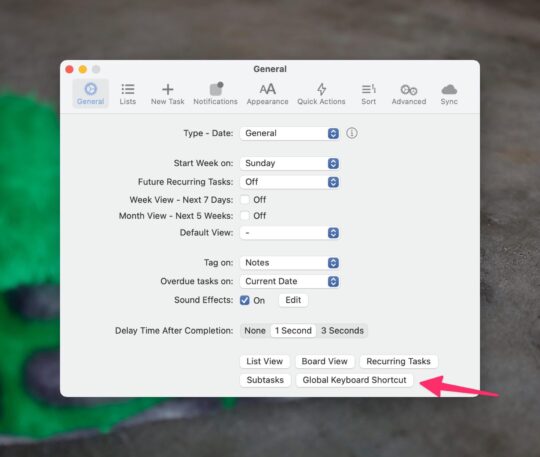 GoodTask quick entry keyboard command
With your keyboard shortcut set, you can now use it anywhere on macOS to bring up the GoodTask quick entry window. From this window you can add almost every piece of task information you'd need. You can add tags by using # in the title of a task, just like you would with Reminders. For dates, you can use natural language to set when a task is due.
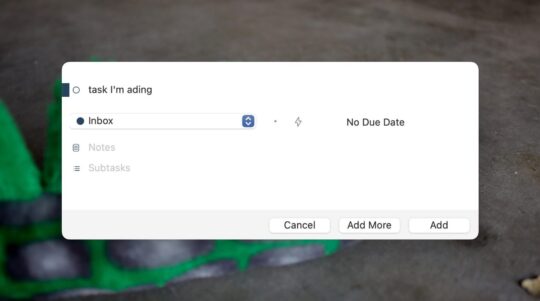 GoodTask quick entry window
The only thing you can't set from the GoodTask entry window is the location of a Reminder
Enhanced Views
Another thing that GoodTasks does to enhance Reminders is the different views that are available. You can see your tasks in a standard list, or add various types of calendars across the top.
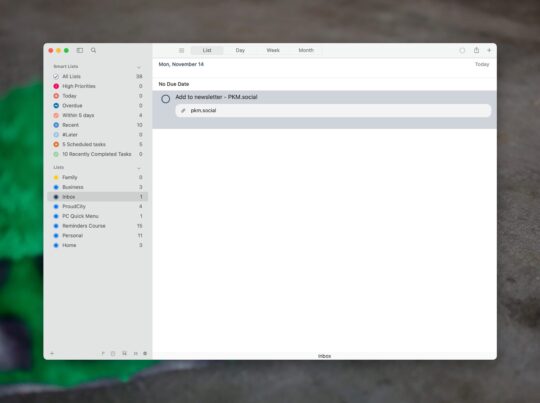 GoodTask list view
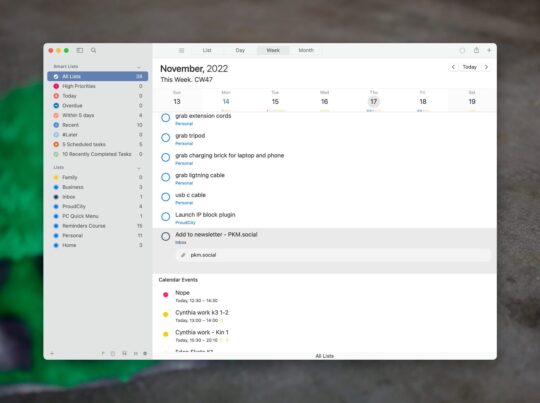 GoodTask list view with week calendar
GoodTask also provides a Kanban style view for your tasks. You can use this along with tags to create a proper Kanban board. Out of the box GoodTask sets up tags in a fairly standard Kanban flow.
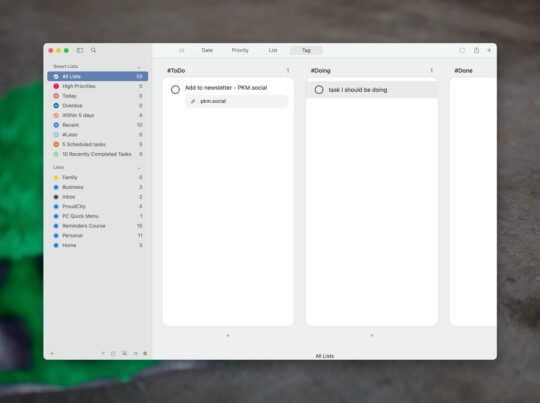 GoodTask Kanban View
Quick Actions
Quick Actions are an easy way to adjust your tasks. When you open a task you'll see them as grey boxes under the tags on a task.
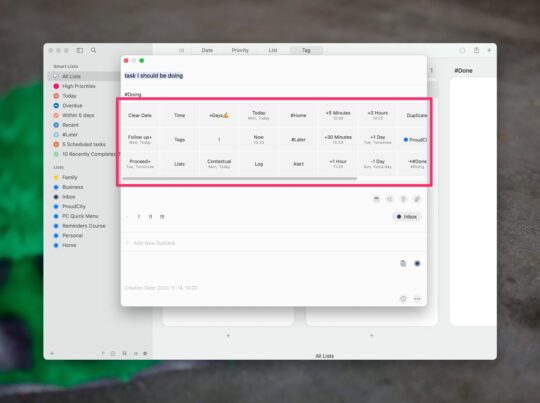 GoodTask quick actions
On macOS you can select a task and press ⌘ O then start typing to jump to different quick actions. I find this to be the fastest way to sort through a bunch of tasks in my Inbox and assign them to different lists so that my Inbox is cleared out.
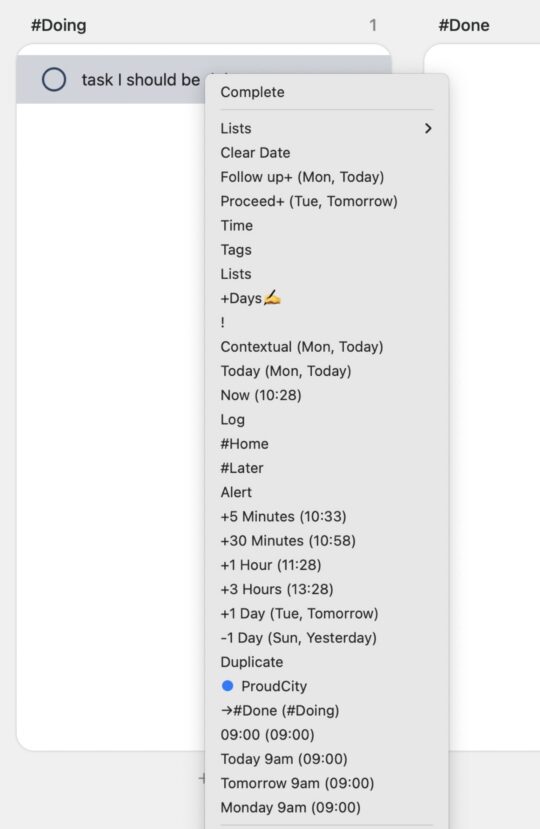 Type to filter GoodTask quick actions
I could devote an entire lesson to how to work with GoodTask quick actions. If you're going to check out GoodTasks, make sure you dig into the power they make available.
Shortcuts
GoodTasks also solves one of my biggest issues with Shortcuts and Reminders, you can add subtasks directly on a task.
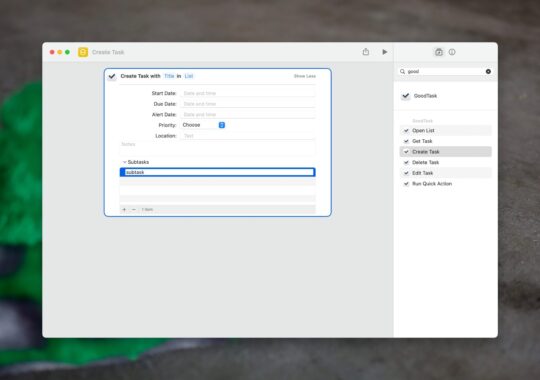 GoodTask Shortcuts and subtasks
In addition to allowing subtasks to be added directly, GoodTasks has support for URL Schemes which can help you create complex projects that are triggered by input from Shortcuts.
Keyboard Commands
Finally, GoodTasks has good keyboard shortcut support on both macOS and iPadOS. Yes, Apple has okay keyboard shortcut support directly in Reminders it's just not quite comprehensive enough for those that have lots of tasks to deal with.
When you combine the excellent keyboard shortcuts that GoodTasks provides with their Quick Actions, you have a truly powerful application for managing your tasks, backed on the excellent sync that Apple Reminders provides.