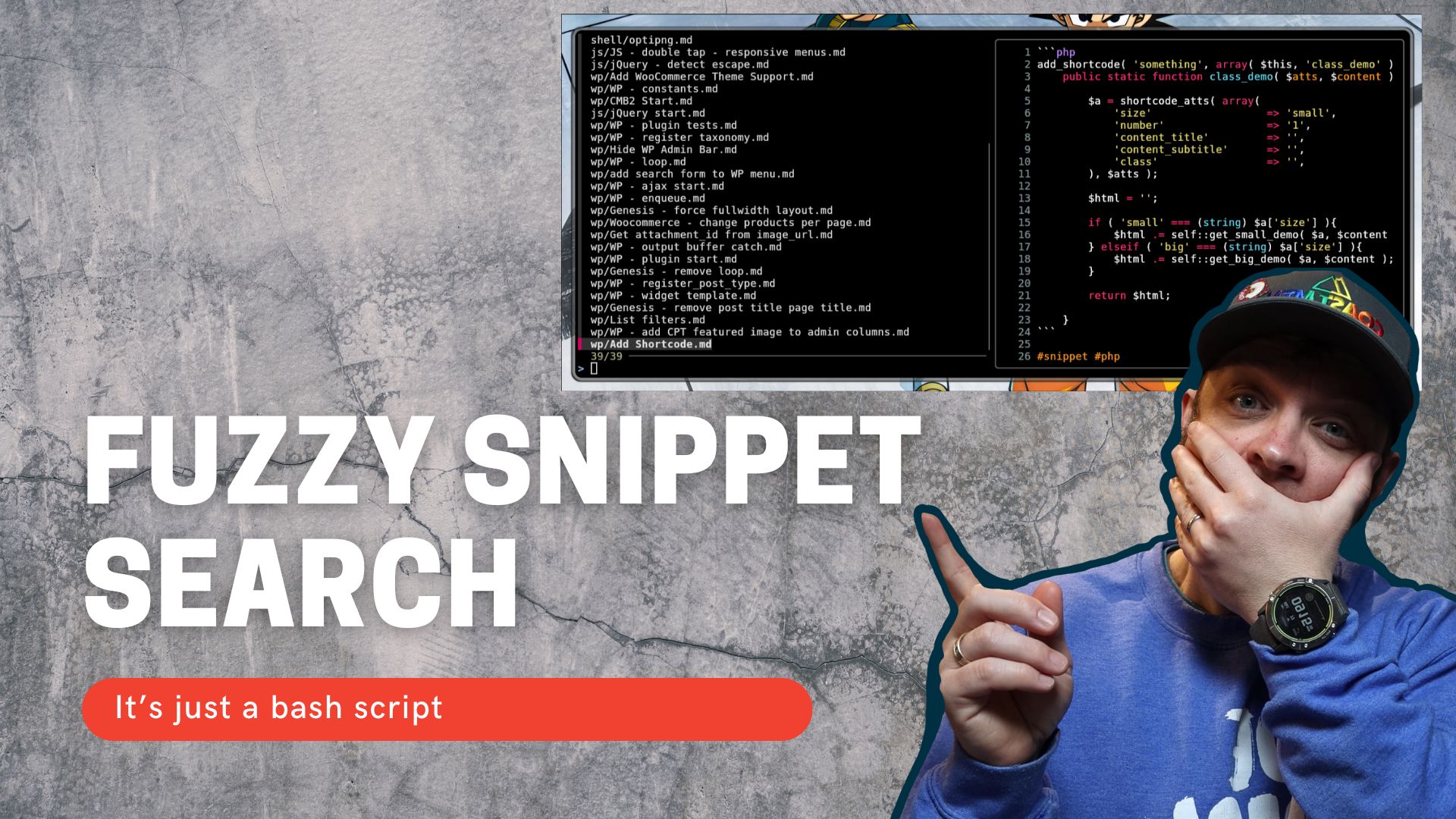
Over the years I've used TextExpander, Alfred, Raycast, and then as I tried to be platform agnostic Espanso. All of the options were decent, but even Espanso had issues on some platforms that caused me to stop using it. For a while I've stored my snippets in my Obsidian vault and then manually copied and pasted them into whatever application I needed.
Time to change that. I wanted to store my snippets in a central place where I could control them with version control. I wanted to invoke a keyboard command, have a window popup to search my snippets, then when I press enter the snippet should be copied to my clipboard. I wanted my snippets to be program agnostic because while I use Neovim for coding, I use Emacs for tasks and Obsidian for writing and I have snippets for each one. I didn't want to manage different snippet systems for each application.
You can find the whole snippet-search script and my other development tools in the Github repository.
I moved my library of code snippets to ~/Documents/snippets, organised into subdirectories by category. Then wrote a small bash script that lets me fuzzy-search the library, preview each snippet with syntax highlighting, and copy the code block directly to my clipboard — all from a floating terminal window triggered by a single keybind.
Now I can press Super+Shift+F, a floating window appears, I type a few characters to filter, once the correct file is highlighted, hit enter, and the code is in my clipboard. The window disappears a second later.
What You Need
The script depends on four tools:
- ripgrep (
rg) — lists files in the snippets directory - fzf — the fuzzy finder that drives the interactive selection
- bat — syntax-highlighted file preview inside fzf
- wl-clipboard (
wl-copy) — Wayland clipboard tool
On NixOS, add them to your home-manager packages:
bat
fzf
ripgrep
wl-clipboard
On other distros, install via your package manager:
# Arch
sudo pacman -S ripgrep fzf bat wl-clipboard

# Ubuntu/Debian
sudo apt install ripgrep fzf bat wl-clipboard
The Snippet Format
Each snippet file is either the code surrounded by backticks, or in the case of newer files just the code in the file. Once selected I want either all the code in the backticks if present, and if not give me the whole code in the file. Once the code is copied you get message then the window disappears after 1 second.
The Script
#!/usr/bin/env bash

set -euo pipefail

SNIPPETS_DIR="$HOME/Documents/snippets"

# Check if snippets directory exists
if [[ ! -d "$SNIPPETS_DIR" ]]; then
    echo "Error: Snippets directory not found at $SNIPPETS_DIR" >&2
    exit 1
fi

# Search with ripgrep, pipe to fzf with bat preview (show relative path only)
result=$(rg --files "$SNIPPETS_DIR" | \
         sed "s|$SNIPPETS_DIR/||" | \
         fzf --preview="bat --style=numbers --color=always $SNIPPETS_DIR/{}")

# Check if user selected a file and pressed enter
if [[ -z "$result" ]]; then
    echo "No selection made."
    exit 0
fi

# Extract content inside triple backtick code fences, fall back to whole file
content=$(awk '/^```/{if(p){p=0}else{p=1;next}} p' "$SNIPPETS_DIR/$result")

if [[ -z "$content" ]]; then
    content=$(cat "$SNIPPETS_DIR/$result")
fi

# Copy to clipboard and show success
if ! printf '%s' "$content" | wl-copy; then
    echo "Error: Failed to copy to clipboard" >&2
    exit 1
fi

echo "✓ Copied $result to clipboard!"
sleep 1
Save it to ~/bin/snippet-search and make it executable:
chmod +x ~/bin/snippet-search
How It Works
File listing — rg --files "$SNIPPETS_DIR" lists every file under the snippets directory recursively. Using ripgrep here rather than find keeps it fast even with a large library, and it respects .gitignore files if you have one.
Stripping the path — the sed command removes the $SNIPPETS_DIR/ prefix from each path before it reaches fzf. This means the picker shows docker/remove-all-containers.md rather than /home/you/Documents/snippets/docker/remove-all-containers.md. The full path is reconstructed later when needed.
Fuzzy preview — fzf gets the relative paths but the --preview flag passes the full path ($SNIPPETS_DIR/{}) to bat. bat renders the file with line numbers and syntax highlighting in the right-hand panel as you move through results.
Code extraction — once a file is selected, awk walks the file line by line. When it hits a line starting with triple backticks, it toggles a flag. Lines between the opening and closing fences are printed; the fence lines themselves are discarded. This strips the language tag (```bash, ```python, etc.) as well as any prose outside the code block.
Clipboard copy — printf '%s' "$content" pipes the extracted code into wl-copy. Using printf rather than echo avoids appending a trailing newline to the clipboard content.
Window close — sleep 1 keeps the terminal open long enough to read the confirmation message before the window closes. On Hyprland with kitty, launch the script with --override close_on_child_death=yes so kitty exits as soon as the script finishes.
Wiring It Up in Hyprland
Add the keybind and a windowrule to your Hyprland config:
bind = $mainMod SHIFT, F, exec, kitty --title snippet-search --override close_on_child_death=yes -e ~/bin/snippet-search

windowrule {
    name = float-snippet-search
    match:initial_title = snippet-search
    float = on
    size = 1200 500
    center = true
}
The --title flag gives the window a predictable name for the windowrule to match. The windowrule floats it at 1200×500 pixels, centred on screen. Adjust the size to taste — wider is better here because fzf splits the view between the file list on the left and the bat preview on the right.
Wiring It Up in KDE
I don't use KDE or GNOME anymore so while these instructions seem like they'll work based on my experience Claude helped me write them. I did check the docs after, but the instructions may not be exact.
In KDE Plasma, go to System Settings → Shortcuts → Custom Shortcuts. Create a new shortcut with the trigger Meta+Shift+F and set the command to:
konsole --title snippet-search -e ~/bin/snippet-search
To make the window float and centre, go to System Settings → Window Management → Window Rules and add a rule. Set the description to snippet-search, match on Window title snippet-search (exact match), then add these properties:
- Position → Apply initially → centre of screen
- Size → Apply initially → 1200×500
- Keep above → Force → Yes
KDE does not have an equivalent to close_on_child_death — Konsole closes automatically when the process running inside it exits, so the window will disappear on its own after the sleep 1.
Wiring It Up in GNOME
GNOME's built-in keyboard shortcuts only support simple commands, so open Settings → Keyboard → View and Customise Shortcuts → Custom Shortcuts and add a new entry. Name it snippet-search, set the shortcut to Super+Shift+F, and use this command:
gnome-terminal --title snippet-search -- ~/bin/snippet-search
GNOME does not have a built-in window rules system. Install the Window Calls Extended GNOME Shell extension if you want to auto-float or size the window. Alternatively, accept that it opens as a regular window — the script still works fine, it just will not automatically float above your current work.
Like Konsole, gnome-terminal closes when its child process exits, so no extra configuration is needed for the window to disappear after the copy.